Supporting Services
Support Tailored to You
Begin your career in Hong Kong, a prime destination for global talent. Our Admission Scheme Matching Tool streamlines your visa application by identifying the matching pathway for your skills. Through HKTE's exclusive network of trusted partners, you'll receive comprehensive partner enquiries support for a seamless transition.
Our designated partners offer expert assistance in:
- Job Searching
- Accommodation
- Education
- Banking & Insurance Services
- Business & Corporate Services
- Integrated Settlement Services
- Networking & Community
Request Partner Support
Follow our simple 5-step process to request service. Corresponding partners will reach out to you directly.


Verify Email
Need guidance? Refer to our Online Support Services Guide.
Verify Email
Provide your email address to receive a code for your service request.
Supporting Services
Beginner's Guide
A Beginner's Guide to Using Online Supporting Services
Welcome to our Beginner's Guide on how to request for supporting services provided by our designated
partners,
who will assist you online in the following seven areas:
- Job Searching
- Accommodation
- Education
- Banking & Insurance Services
- Business & Corporate Services
- Integrated Settlement Services
- Networking & Community
This guide will provide step-by-step instructions to help you navigate through the request process
successfully.
The guide is divided into five sections, each focusing on a specific aspect of the request process.
Step 1: Verify Email
Step 2: Tell Us about Yourself
Step 3: Select Services
Step 4: Review Your Details
Step 5: Sent Successfully
Step 1
Verify Email
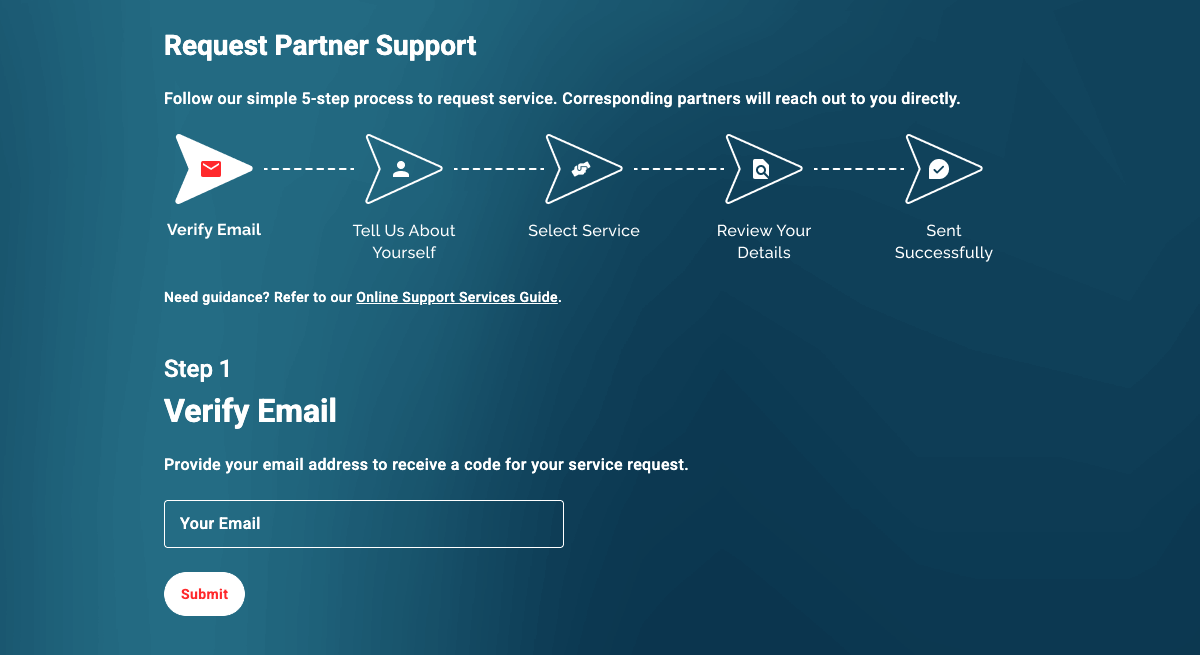
On the first page, you will be prompted to enter and verify your email address.
- Enter your email in the provided field.
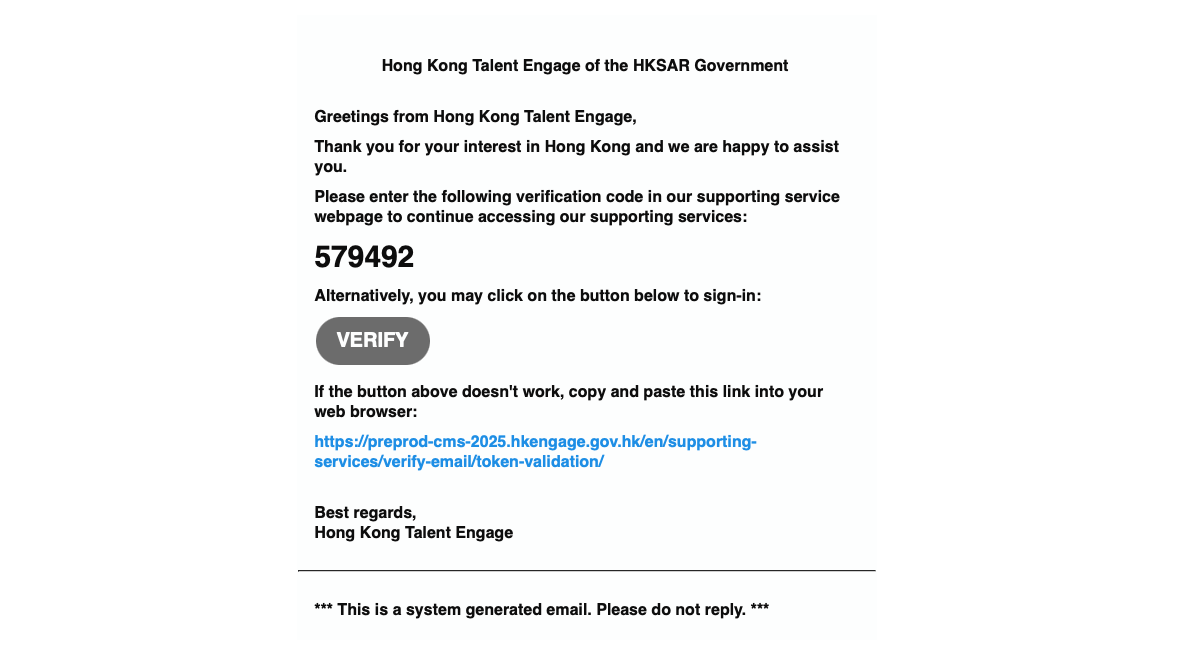
- Check your email inbox, including junk and spam folders, for a verification email from us.
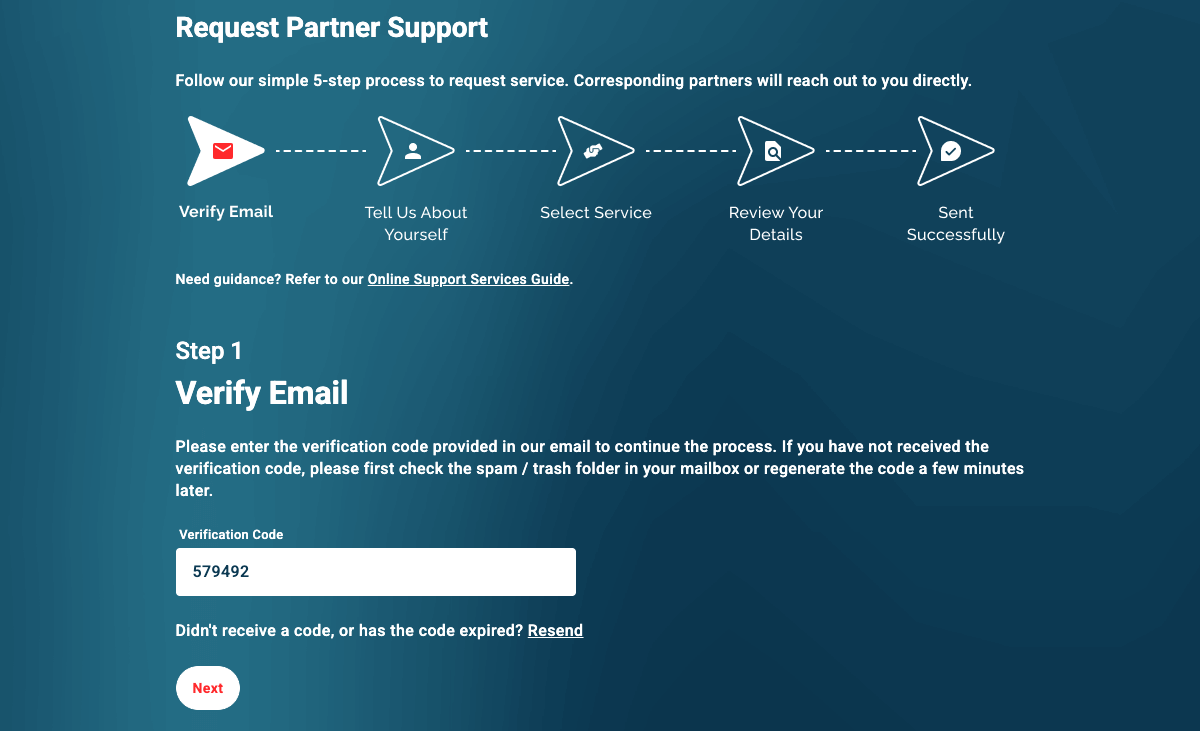
- Open the verification email and either click on the provided verification link, or enter the verification code in the page as instructed.
- Once you have successfully verified your email, you will be redirected to the next page.
Step 2
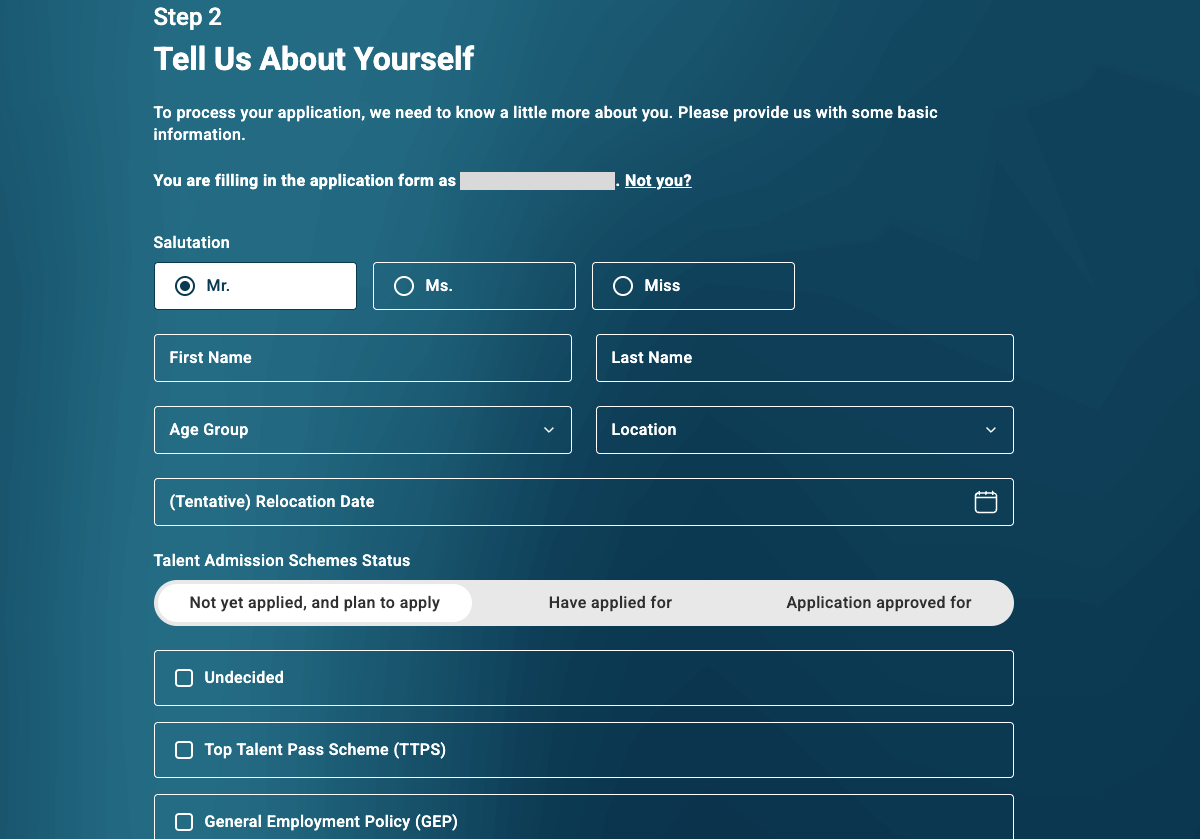
Tell Us About Yourself
After email verification, you will land on the second page where you need to fill in some
information about you.
- Fill in your full name, age group, location, talent admission scheme status and more in the respective fields.
- Review the entered information for accuracy before proceeding to the next page.
Step 3
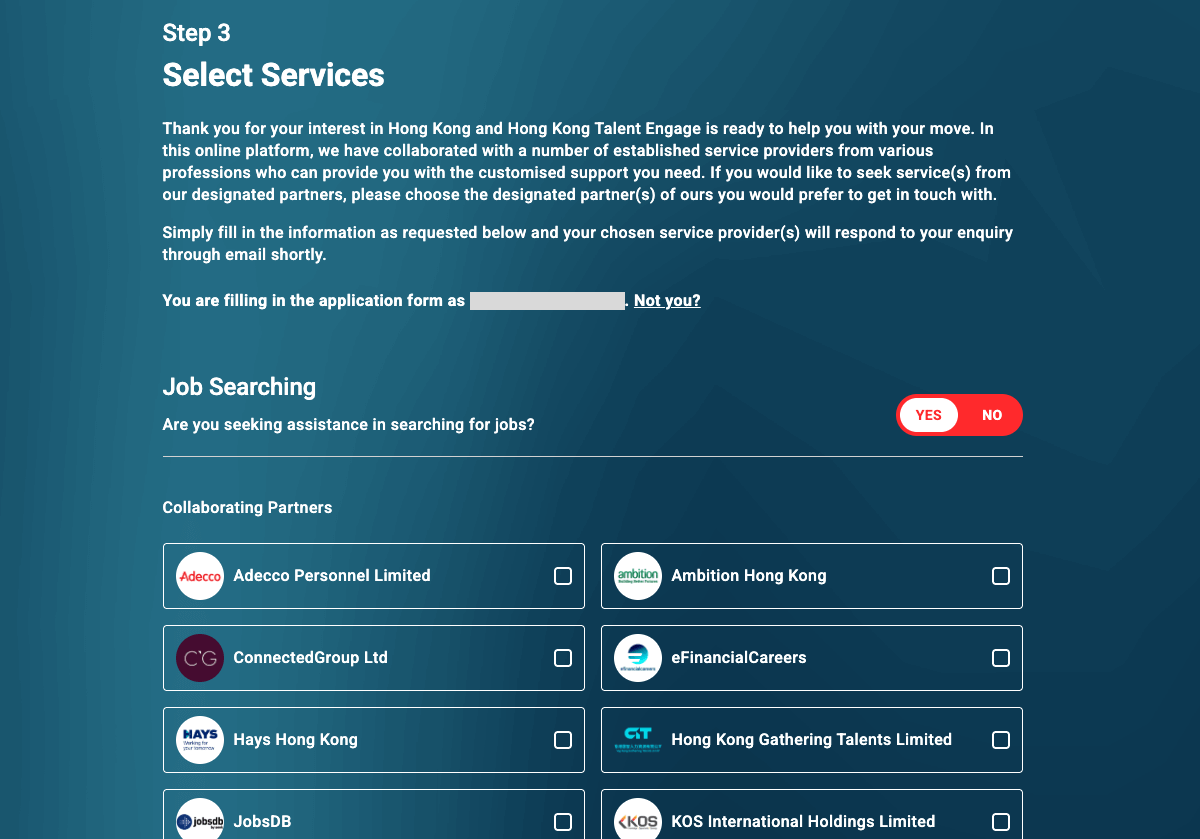
Select Services
On this page, you will find various types of services available, including Job Searching,
Accommodation, Education, Banking & Insurance Services, Business & Corporate Services, Integrated Settlement
Services, and Networking & Community.
- Select the service type(s) you require, choose the desired service providers, and fill in any additional preferences or requirements.
- If there are any optional fields, such as a brief description of your current situation or any specific requests, provide that information as well for us to learn more about your needs.
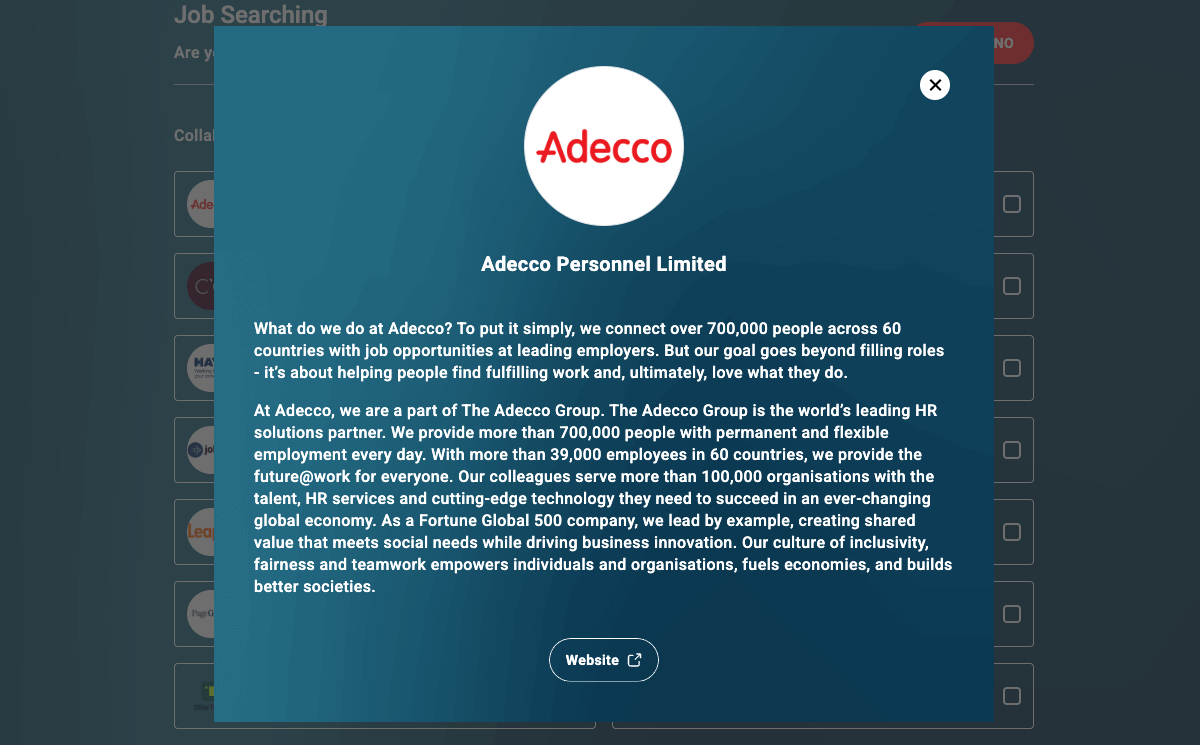
- If you would like to learn more about a specific service provider, click the company icon for a brief introduction.
- Double-check all the information provided before moving on to the next step.
Step 4
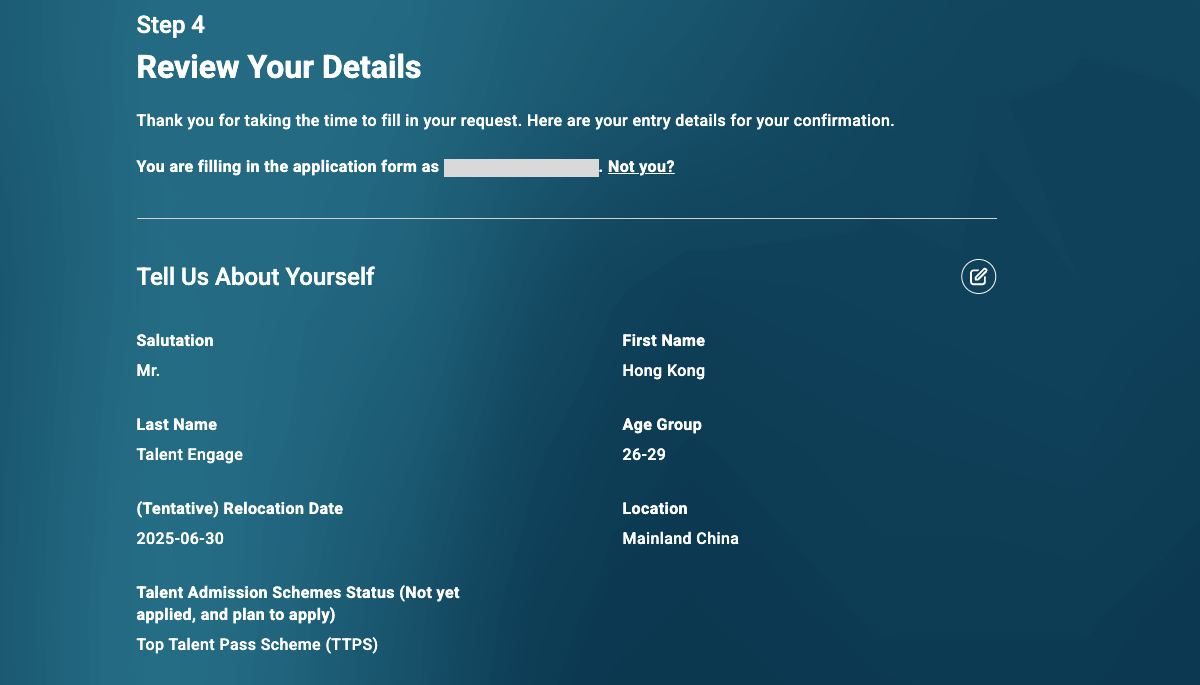
Review Your Details
Lastly, you will be able to review all the information you have provided so far.
- Pay special attention to personal information provided and service requests for accuracy and completeness.
- If you notice any errors or omissions, click on the "edit" button to make corrections.
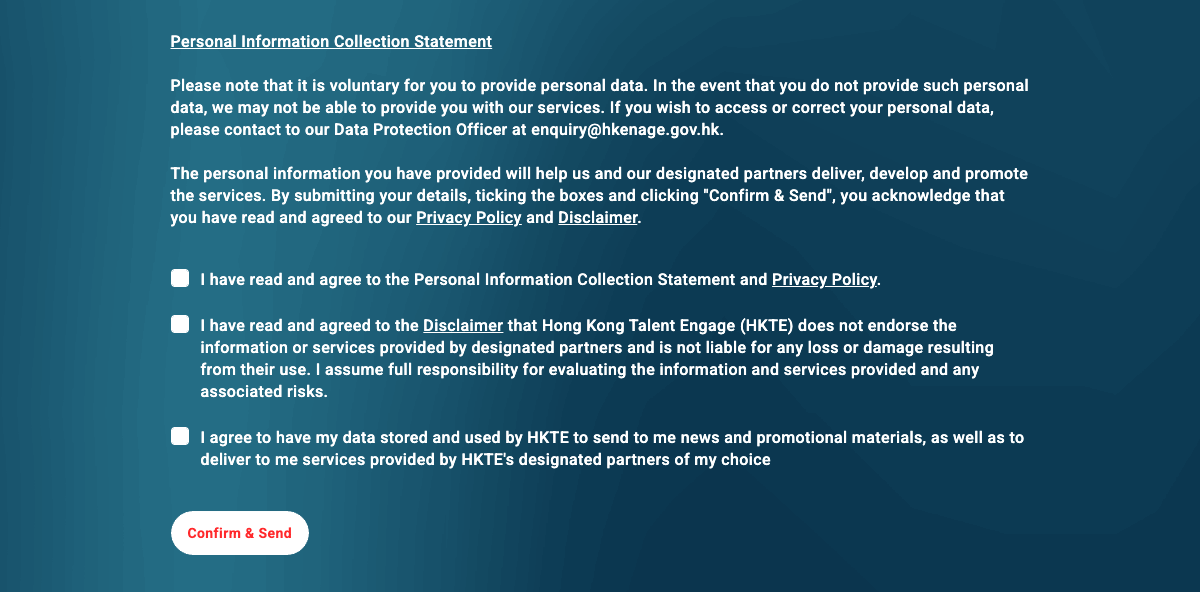
- Once you are confident that all the information is accurate and have read through our Privacy Policy and Disclaimer, you can submit your request by clicking "Confirm & Send".
Step 5
Sent Successfully
After clicking the "Confirm & Send" button:
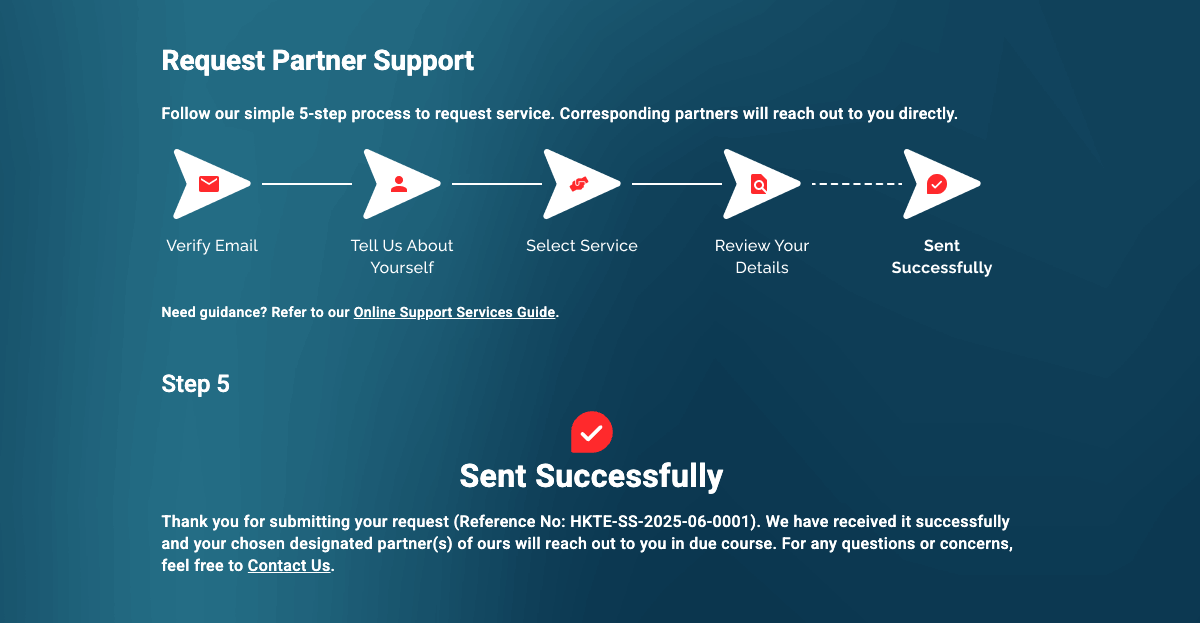
- You will receive a confirmation message and email indicating that your request has been successfully submitted with a reference number. Keep a record for future inquiries.
- The next step involves our designated partners replying to your request and providing assistance promptly. Stay tuned to your email inbox.